
One Mac — Many Emulators: Building a Clean Folder Structure Without Conflicts
Running several emulators on a single Mac in 2026 is entirely realistic, whether you are preserving retro libraries, testing builds, or consolidating different console generations in one workspace. The difficulty is not installation — most modern emulators run well on Apple Silicon and recent Intel Macs — but organisation. Shared BIOS files, encryption keys, shader caches, save directories and user profiles can quickly become chaotic. A poorly structured setup leads to duplicated files, corrupted caches, permission errors and broken updates. This guide explains how to build a clean, conflict-free structure that works across emulators such as RPCS3, PCSX2, Dolphin, Cemu, Ryujinx and others, while remaining maintainable long term.
Designing a Unified Emulator Directory on macOS
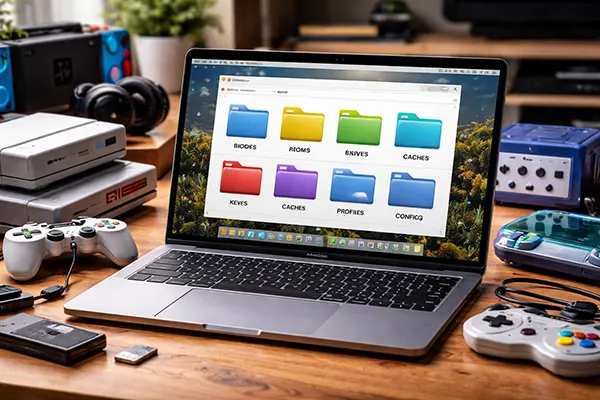
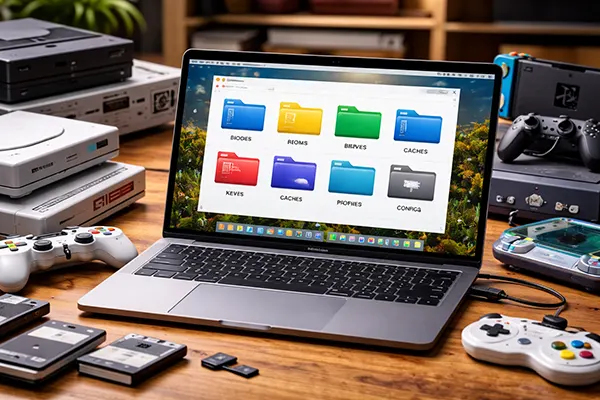
The first principle is separation of binaries from data. Applications should live in /Applications or a dedicated Applications/Emulators folder, while all working data must be centralised elsewhere. On macOS, the most reliable location is within your user directory: ~/Emulation. This avoids sandboxing issues and keeps Time Machine backups predictable. Inside ~/Emulation, create clearly named root folders: BIOS, Keys, Roms, Saves, Caches, Profiles and Configs. This becomes your single source of truth.
Do not rely on default emulator paths inside ~/Library/Application Support unless absolutely required. Many emulators allow custom paths in settings. Redirect them to your ~/Emulation structure. For example, set Dolphin’s NAND and cache paths manually, configure PCSX2 BIOS directory to ~/Emulation/BIOS/PS2, and point RPCS3 firmware and cache to ~/Emulation/Configs/RPCS3 and ~/Emulation/Caches/RPCS3. Consistency prevents cross-writing and accidental overwrites.
Apple Silicon users should also consider architecture separation. If you run both ARM-native and Rosetta-based builds, maintain separate Configs subfolders (e.g., RPCS3-ARM and RPCS3-x86) to prevent shader and pipeline cache corruption. While most 2026 builds are universal or ARM-native, mixing architectures without isolation can still break compatibility.
Recommended Folder Blueprint for 2026 Setups
A practical structure looks like this: ~/Emulation/BIOS (subfolders per system), ~/Emulation/Keys (Switch, PS3, WiiU etc.), ~/Emulation/Roms (grouped by console), ~/Emulation/Saves (per emulator), ~/Emulation/Caches (shader and pipeline caches separated per emulator), ~/Emulation/Profiles (controller and user profiles), and ~/Emulation/Configs (configuration files and firmware). This design avoids duplication and makes migration simple.
Symbolic links are particularly useful on macOS. If an emulator insists on using its default internal folder, create a symbolic link from its expected path to your central directory using ln -s in Terminal. This ensures the emulator “thinks” it is using its own directory while all data remains unified.
Finally, keep documentation inside ~/Emulation as a simple README.txt describing versions, firmware origins and configuration notes. When returning months later, this saves time and prevents accidental firmware mismatches.
Managing Shared BIOS Files, Encryption Keys and Firmware
Many systems require external firmware or BIOS files: PlayStation 2, PlayStation 3, Sega CD, Neo Geo and others. In 2026, most emulators no longer bundle these components for legal reasons. Storing them centrally avoids duplication across emulator updates. Inside ~/Emulation/BIOS, create subfolders per system and use clear naming conventions such as SCPH-70012.bin rather than vague labels.
Switch and PS3 emulation requires encryption keys and firmware packages. Store keys in ~/Emulation/Keys with restricted permissions (chmod 600) so they remain readable only to your account. This prevents accidental corruption by automated scripts or third-party tools. Never mix production firmware dumps with experimental builds; version-tag them clearly.
When updating firmware, never overwrite old files directly. Archive previous versions in ~/Emulation/BIOS/Archive. Emulator updates sometimes deprecate firmware compatibility, and rolling back becomes easier when old files remain intact.
Avoiding Conflicts Between Emulator Updates
Emulators such as RPCS3 and Ryujinx frequently update shader compilers and pipeline cache formats. If you store caches in a shared directory without subfolders per version, corruption may occur. Always isolate caches by emulator and, if possible, by major version number.
Before updating any emulator, back up its Configs and Caches folders. On macOS, a simple zipped snapshot is sufficient. If the new version introduces instability, restoring previous configuration avoids reconfiguration from scratch.
Where supported, enable portable mode. Some emulators allow running entirely from a self-contained folder. Even then, redirect large assets such as Roms and BIOS externally to keep the application lightweight and easier to replace.
Organising Saves, Profiles and Shader Caches Safely
Save data integrity matters more than raw performance tweaks. Store saves under ~/Emulation/Saves divided by emulator and system. Avoid mixing auto-saves and manual states in the same directory. Many emulators generate temporary state files that can become incompatible after updates.
Shader caches should never share directories between emulators. Although their names may appear similar, formats differ. For example, Dolphin’s shader cache is not interchangeable with Cemu’s Vulkan pipeline cache. Keep each under ~/Emulation/Caches/EmulatorName. If you experiment with graphics backends (Metal, Vulkan via MoltenVK), isolate those caches separately.
Controller and user profiles belong in ~/Emulation/Profiles. If you use the same DualSense or Xbox controller across multiple emulators, maintain individual profile exports rather than one shared file. Input mapping structures differ significantly, and overwriting profiles can result in mismatched button assignments.
Long-Term Maintenance and Backup Strategy
Use Time Machine selectively. Add ~/Emulation to backups but exclude Caches if storage space is limited; shader caches can be rebuilt. Prioritise BIOS, Keys, Saves and Configs. These represent irreplaceable time investment and legal dumps.
Once per quarter, audit your structure. Remove obsolete cache folders, check for duplicate firmware files and confirm that symbolic links still point correctly. Emulator experimentation often leaves remnants that clutter the system.
When migrating to a new Mac, copy the entire ~/Emulation directory first, then reinstall fresh emulator builds and reconnect paths manually. Avoid copying application bundles directly between machines, especially when moving between Intel and Apple Silicon systems. A clean binary with preserved data ensures stability.